
Go to Settings >> Configuration >> Enrichment Sources.
Click Add.
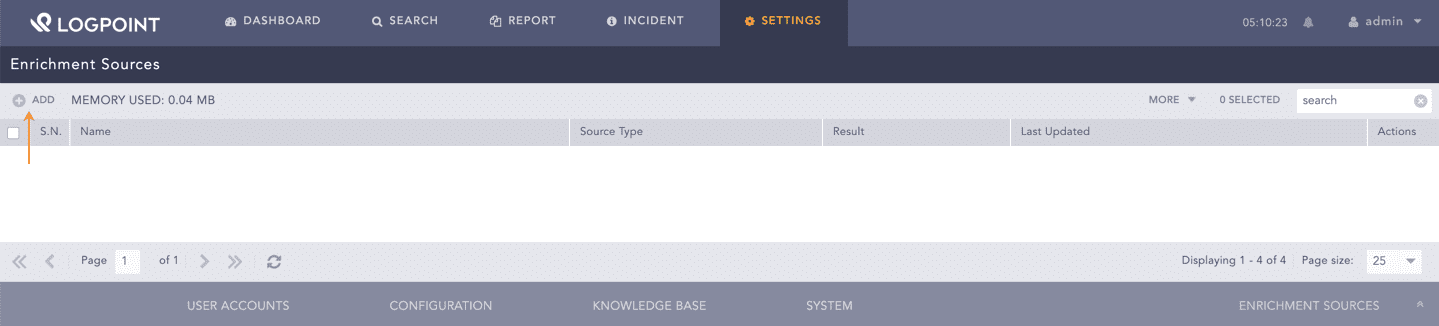
Adding an Enrichment Source
Select the LDAP option.
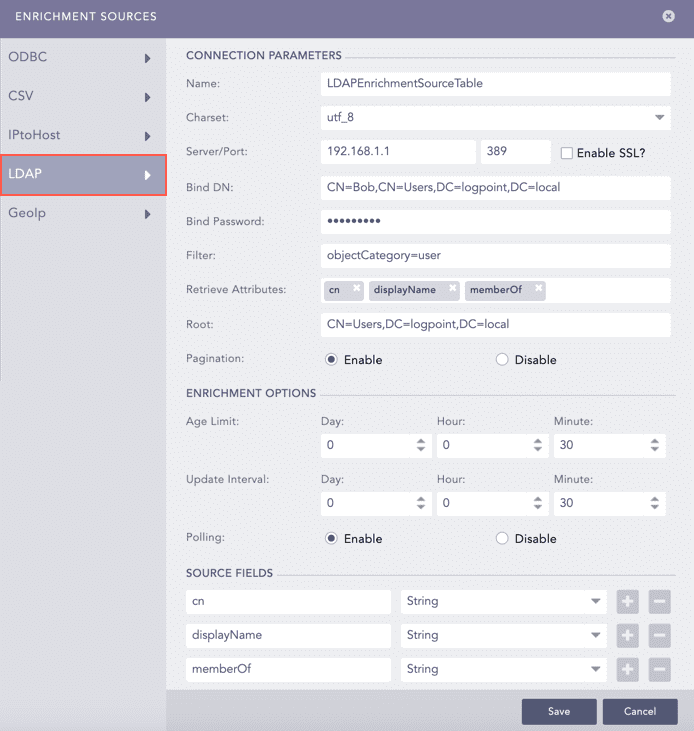
Adding LDAP as an Enrichment Source
Enter a Name.
Select the Charset.
Enter the Server IP and the Port number of the LDAP server.
Select the Enable SSL? option to connect using SSL.
Enter the Bind DN and the Bind Password of the LDAP server. Information in the Bind DN indicates your credentials to authenticate the LDAP directory. The Bind Password is your password of the Bind DN.
Enter a Filter to refine the search results.
Enter the attributes to be extracted in Retrieve Attributes.
Enter the Root node from which data are extracted.
Enable the Pagination option to retrieve data one page at a time from the server. If disabled, the application retrieves all the data at once.
In the Enrichment Options section:
13.1 Select an Age Limit. It is the retention period of data.
13.2 Select an Update Interval. It is the interval at which data is read.
13.3 Enable the Polling option to poll the LDAP server every two minutes for attribute changes.
Note
To enable the Polling option, the Retrieve Attributes field must contain the objectGUID attribute or the userPrincipalName attribute.
In the Source Fields section, add Fields with relevant Type from the drop-down menu.
Note
The values in Retrieve Attributes and Source Fields must be identical.
Click Save.